
You need to know ssh to connect Github
#Before we dive in
The reason I am writing this is because I have seen numbers of my teammate who is working with Github Desktop app and getting code from http setting. First and foremost, it is not safe and secured, but more importantly, we should be on the same page when we work on the same project. Thus I am making this post to let you on board. It's crucial to configure SSH connection settings properly to ensure seamless authentication. Here are the steps to set up and manage multiple SSH configurations.
#1. Generate SSH Keys
First, we should start by generating SSH keys for each GitHub account you'll be using. Use the
ssh-keygenssh-keygen -t rsa -C "your_email@example.com"
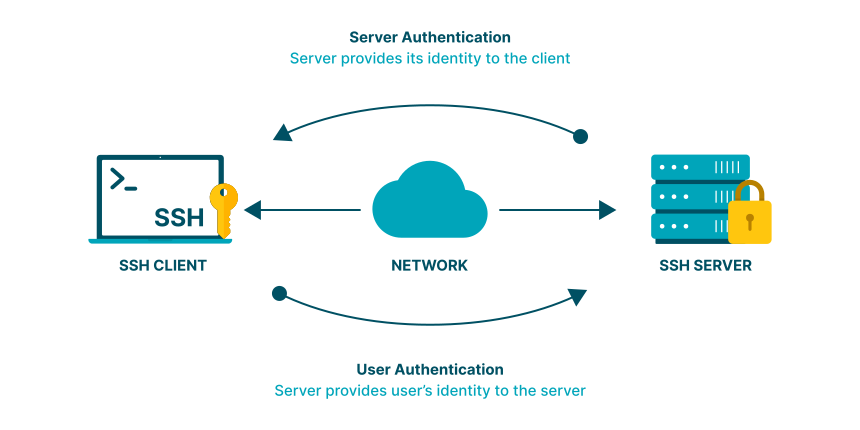
Source: www.cloudpanel.io
Ensure that you provide a distinct name for the keys to differentiate them easily.
If you did not know ssh configuration and this is a first time seeing, don't worry. Here is a quick review on ssh configuration where you can learn about SSH Configuration. I always recommend looking up from official documentation, which in this case is Github, but it is always nice to look other posts as second opinion.


Generating a new SSH key and adding it to the ssh-agent - GitHub Docs
After you've checked for existing SSH keys, you can generate a new SSH key to use for authentication, then add it to the ssh-agent.

.png)
How to Create an SSH Key in Linux: Easy Step-by-Step Guide | DigitalOcean
Learn how to generate SSH keys in Linux with our detailed guide. Includes step-by-step instructions, troubleshooting tips, and practical examples for secure …
#2. Add SSH Keys to SSH Agent
Add the generated SSH keys to your SSH agent using the ssh-add command. This will allow your SSH agent to manage your private keys.
ssh-add ~/.ssh/custom_key
Repeat this step for each SSH key you generated.
#3. Create SSH Configuration File
Create or modify the SSH configuration file (~/.ssh/config) to specify different settings for each GitHub account. You can use aliases to distinguish between the accounts. If you have a github account for personal one and your work on, follow this step to have multiple accounts:
# Default GitHub account
Host github.com
  HostName github.com
  User git
  IdentityFile ~/.ssh/id_rsa

# Secondary GitHub account
Host github-second
  HostName github.com
  User git
  IdentityFile ~/.ssh/second_rsa
Replace github-second with an alias of your choice for your secondary GitHub account, and second_rsa with the corresponding private key filename.

SSH config file syntax and how-tos for configuring the OpenSSH client
Here is the SSH config file syntax and all the needed how-tos for configuring the your OpenSSH client
#4. Configure Git Remotes
Update the remote URLs in your Git repositories to use the aliases defined in the SSH configuration file.
git remote set-url origin git@github-second:username/repo.git
Replace 'username' with your GitHub username and repo with the name of your repository.
#5. Test SSH Connection
Ensure that your SSH configuration is correctly set up by testing the connection to each GitHub account.
ssh -T git@github-second
If the setup is successful, you'll receive a confirmation message. By following these procedures, you can manage multiple GitHub accounts with distinct SSH connection settings efficiently.